22-03-2022 10:58 AM - last edited 22-03-2022 12:47 PM
As I wade through the murky waters of the internet, I've occasionally come across complaints that other phones can do something Samsung can't. In this particular case, dynamic battery charging. What is it? The way the phone charges at night is that it charges to a certain level and then charges the rest of its capacity just moments before you wake up. In theory, this protects the battery. Practically? I don't know.
In any case, our phones can only set the charge to a maximum of 85%. It's done in Settings -> Battery and Device Care -> Battery -> More Battery Settings -> Protect Battery

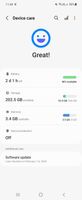
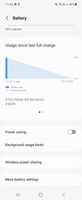
But what if we want similar behaviour to, say, iPhones? That is, the phone charges to 85% at night and 100% in the morning?
The solution is automation. The idea is simple: create a rule where the phone charges to a maximum of 85% during the night and then allows charging to 100% in the morning. This can then be tweaked, of course, e.g. different times during the week, different times at the weekend, only at home, etc. But the basis is given.
We will only create a profile to disable protection for a short time, and this is so that we don't show an active profile all day. I will show two options and compare their advantages and disadvantages.
As usual, I'll start with my favorite Tasker. We create a profile based on time and as an entry point we create a task that sets active/inactive battery protection in the system. We select Settings, Custom setting as the action and let Tasker find the correct setting. The strange thing is that with the S22 Ultra this setting is in Global, with the Flip it was in System. A bit of tinkering will be required here. We want to turn protection off, so we set the protect_battery propert to 0. Then we create an exit task with the same command, only this time the value will be 1.
If you are working with the settings for the first time, you will need to enable permissions. Then try manually running the task. If you get a message that you need to authorize the Tasker, you can follow the online help or I can make it easier for you: enable developer options, enable USB debugging, connect your phone to the PC and authorize debugging from that PC. Then you run this command:
adb shell pm grant net.dinglisch.android.taskerm android.permission.WRITE_SECURE_SETTINGS
If you got lost in the last paragraph, either study more information or go to the next chapter where I describe a more user-friendly procedure.

Note: I recorded the video in czech environment but I hope it's understandable.
Activate Bixby routines, add a custom routine based on time, and select Battery -> Battery Protection as the action. Done.
Note: I recorded the video in czech environment but I hope it's understandable.
Why make it complicated in Tasker when it's easy in Bixby routines, you ask? Tasker has two advantages:
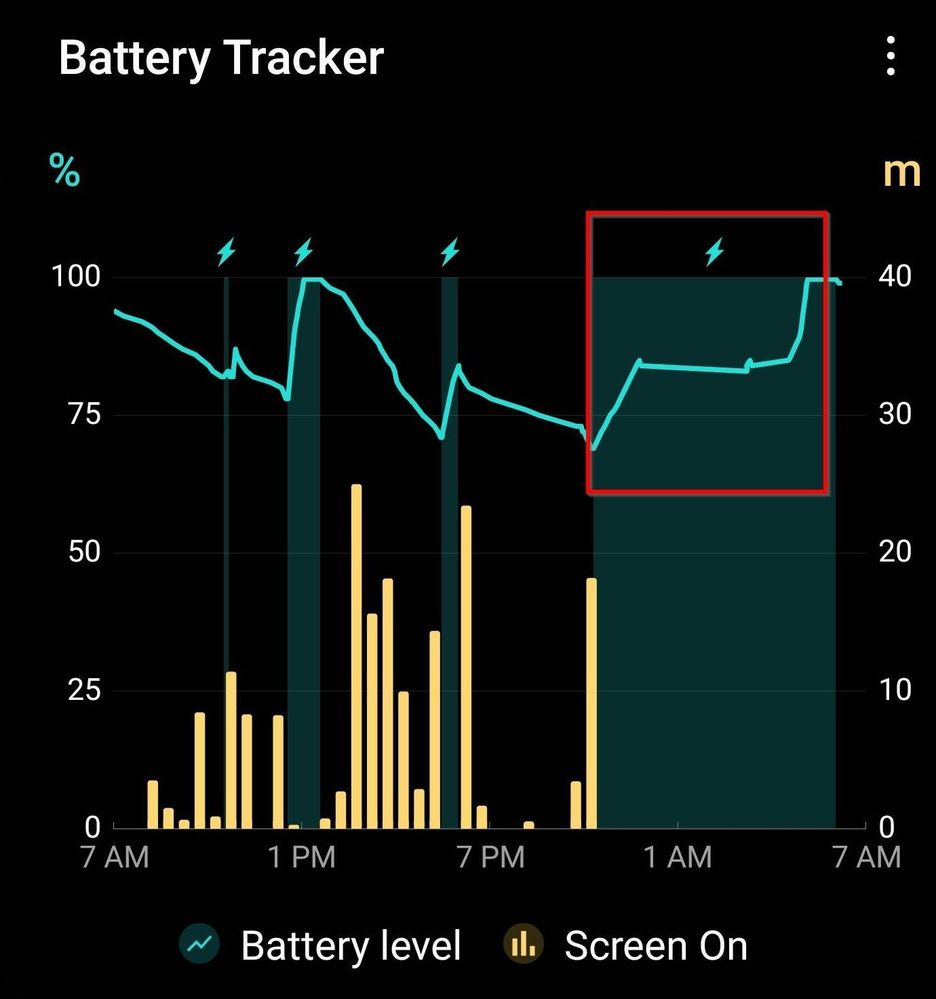
This is what the charging graph looked like tonight, Tasker was used (I didn't test Bixby, but I don't see why it wouldn't work):
As you can see, the charging stopped at 85% and only continued at the set time.
There is a more advanced method using IFTTT and a smart socket, but this solution is sufficient in my opinion.